Do you know the Workflow XML Parser tool which is released at the Alteryx Marketplace? This tool is for analysing the Alteryx workflow files themselves. This tool is compatible with Designer 2022.1 and later.
Alteryx Workflow is the XML file
Actually, the Alteryx workflow file “yxmd” is XML file format. Let’s open them by notepad.
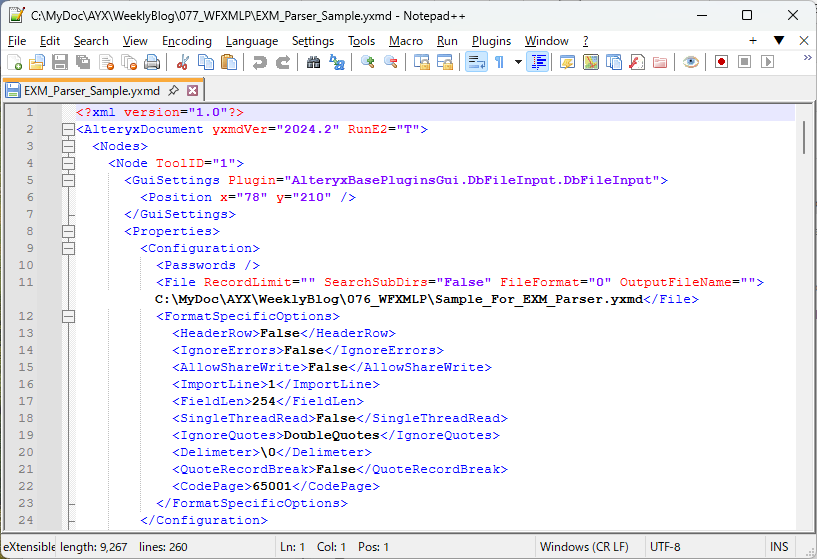
It’s definitely a file written in XML format. If you parse this file, you can know many things what you want to know. For example, what tools are used in this workflow? What are the input/output files? The parse is a bit difficult, but you can use easily this official tool to parse the Alteryx Workflow.
Actually, this tool is an Alteryx macro, so you can open this file by Designer. This file is a bit complex workflow.

Let’s parse this file by Workflow XML Parser tool itself.
Open the Alteryx Workflow
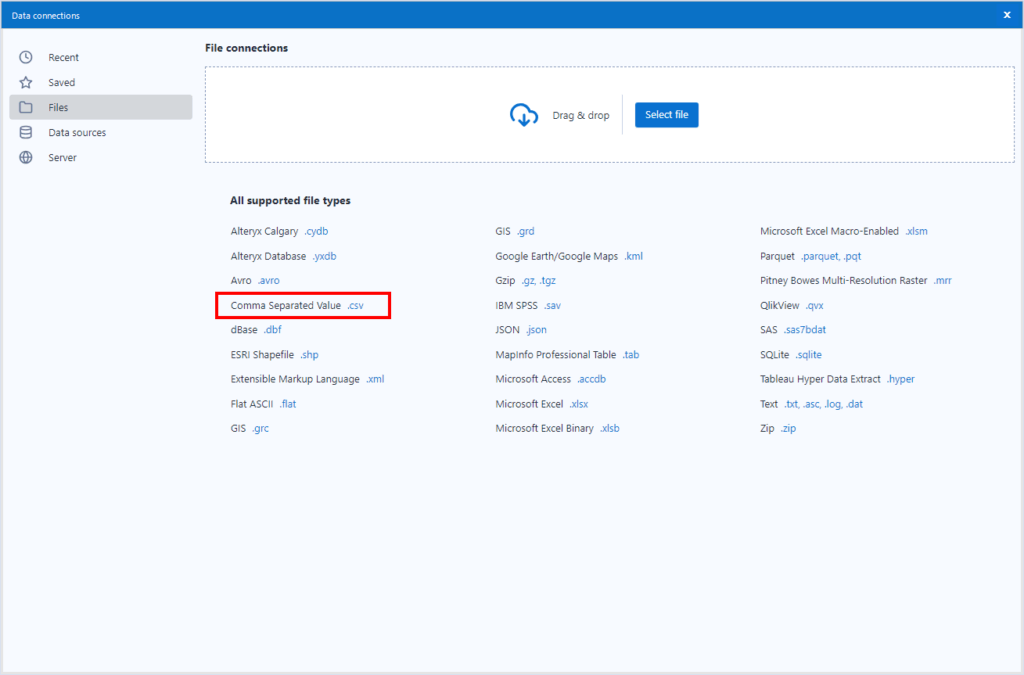
First, you have to open the Alteryx workflow file(yxmd, yxmc or yxwz). But there is no file type to open at the Data Connection window. The Alteryx workflow files are based on the text file (to be precise, xml file type), so you can open them as the CSV file type.
Open as the spacial CSV file at the Input Data tool
When you use the Input Data tool to open the workflow files, you should select the CSV file type. There is a XML file type, but if you use it, you can’t use the Workflow XML Parser tool.
After selecting the file that you want to open, the dialogue below will be shown because the workflow file is not the standard CSV file.

The setting is as the red box part.
- Select the “Read it as a delimited text file”
- None as Delimiter
- Don’t check “First Row Contains Field Names”
After setting, when you run the workflow, you may see the truncated error below.

This is due to the limitation of the Input Data tool. The Input Data tool has an option “Field Length”. You have to set an appropriate value to this option not to truncate the data. The default value is 254 letters for each cell ( “Cell” means between delimiters ). And also, you have to change the Code Page to “UTF-8”.

Next, data for Workflow XML Parser tool should be merged. So, you have to merge the datastream with the Summarize tool.

About this setting, set the action to “Concatenate” and delete the separator or set “\n” on the Concatenate Propaties.
And then, just connect to the Workflow XML Parser tool.

Open as Blob
You can also data as Blob type with Blob Input tool. This way is easy to use. The workflow is as follows.

Firstm open that file with the Blob Input tool.

Next, change it to the UTF-8 text with the Blob Convert tool. The setting is as follows.

Conversion Mode : “Conver From a Blob Field”
Blob Field : “Blob is Text Encoded with a Code Page”
The Code Page should be set as “Unicode UTF-8”.
And then, just connect it to the Workflow XML Parser tool.
About the result of the Workflow XML Parser tool
The Workflow XML Parser tool have three output “W”, “T” and “C”.

I think that W = Workflow, T = Tool and C = Connection.
Let’s see the result that I transpose first record with Transpose tool.
W output :
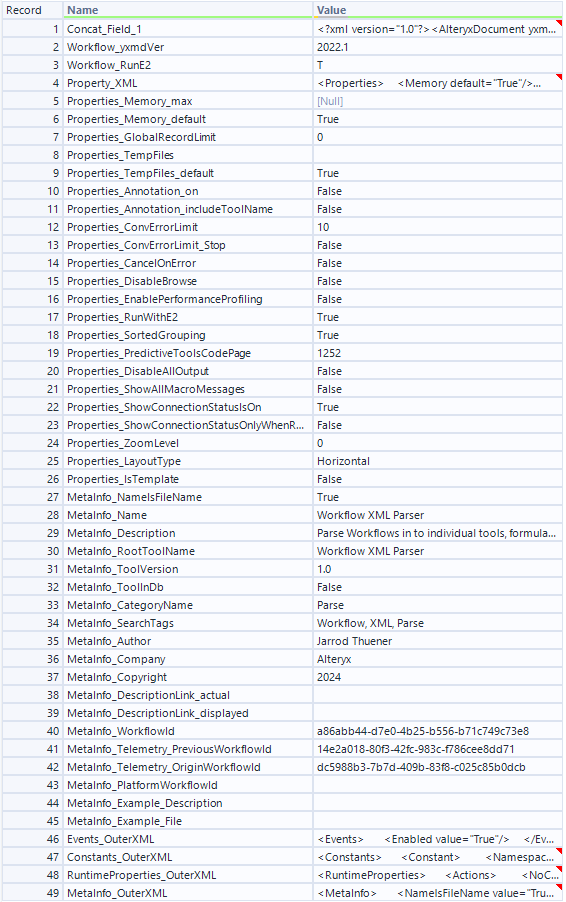
It seems like workflow setting.
T output :


This output has the setting of each tool. The detail setting is in the Configuration Outer XML. Meanwhile, the representative settings are shown in each column directly.
C output :
This output is not transposed bacause there are few columns(The screenshot has all columns).

This output shows all the connections between tools. For example, first record means that the ToolID 416 is connected from ToolID 44.
Analysis Sample
Many different types of analyses are possible with the Workflow XML Parser tool. For example, tool names and tool categories are gotten by the T output, so the statistics of the workflow could be calculated easily.
I analyse the Workflow XML Parser tool itself, the Select tool is most used tool.

Another one, there is the connection information in the T output and C output, so I can make the connection vizualization with Network Analysis tool.
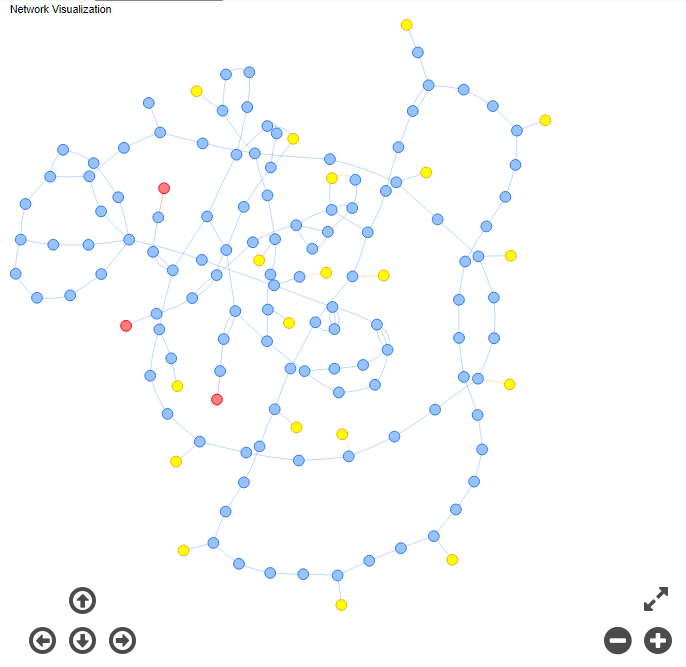
Red circles are output tool, yellow circles are input tool and another tools are blue.
For example, the statistics of the workflows in the organization might privide the interesting insights. There is the AnnotationText column that only shows edited annotation in T output, so you can find workflows which have few annotations.
Conclusion
- I have introduced the Workflow XML Parse tool which is provided in the Marketplace.
- I have explained how to see the result and some sample of the analytics.
- The help of the Workflow XML Parser tool is here.
Sample workflow download
The next blog post is…
The next post will be about Interactive Chart tool.

コメント